|
1
|
- CCSOSARP Standard
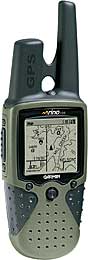
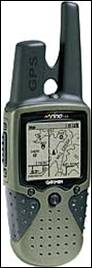
- GPS/FRS/GMRS
|
|
2
|
- After this class you should be able to:
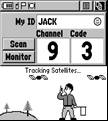
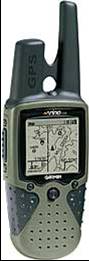
- Power on a Rino
- Set the radio channel & code
- Set the unit name/ID
- Enable Send/Poll Location
- Poll a contact
- Send location
- Understand radio user interface basics
|
|
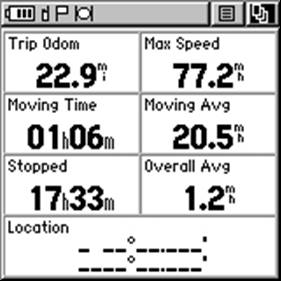
3
|
- After this class you should be able to:
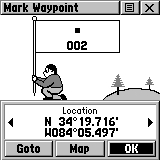
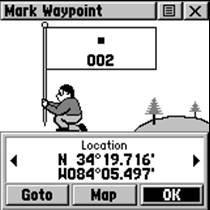
- Mark GPS Waypoints on Rino
- Goto a Waypoint, Contact, or Place
- Clear & Save Tracks & Trips
- Determine distance and direction to a “Contact”
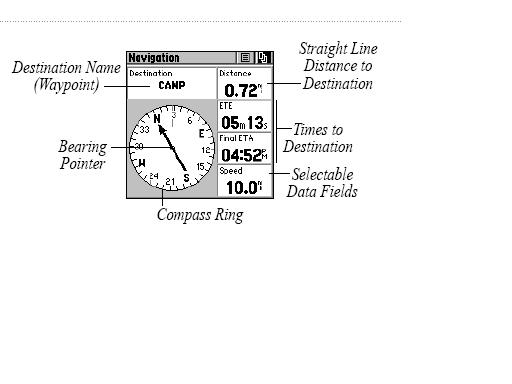
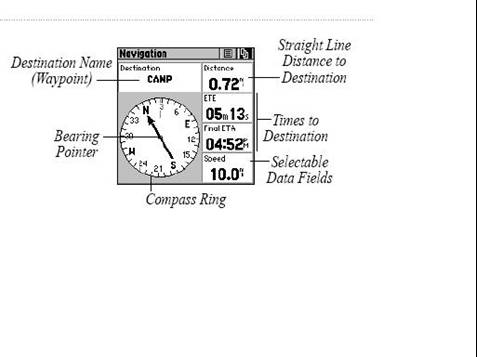
- Navigate with the Navigation Screen
- Understand GPS user interface basics
|
|
4
|
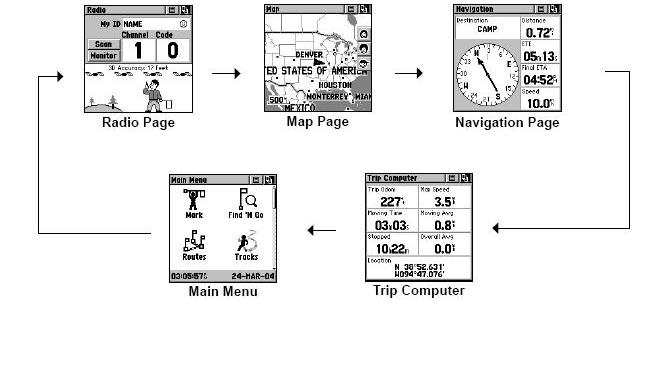
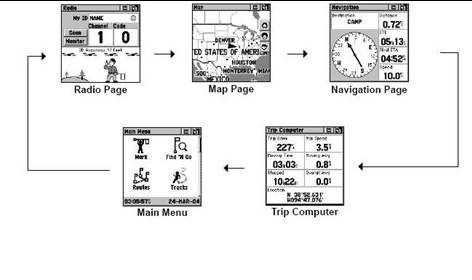
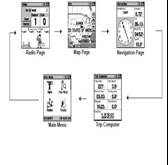
- Power on
- Menu System
- Radio
- Map
- Nav
- Trip
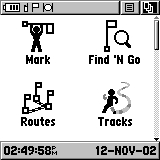
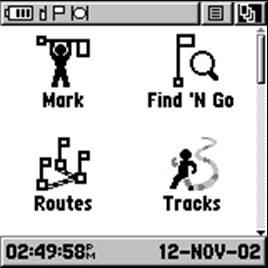
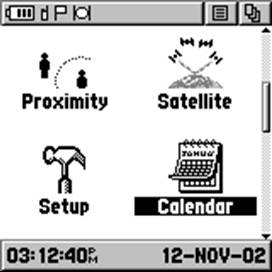
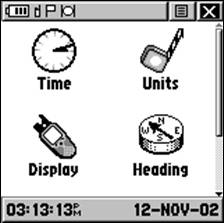
- Main menu
|
|
5
|
|
|
6
|
|
|
7
|
- Communicate
- Auto-location/Polling (enable)
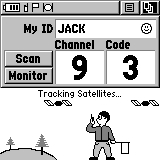
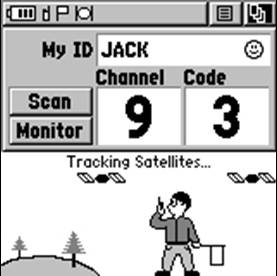
- Setup channel/code
- Setup ID
- Contacts: accept, review, poll
|
|
8
|
|
|
9
|
- Sends location on Xmit (PTT) or Call
- FRS (or GMRS w/license)
- Must be on correct channel # w/correct
code
|
|
10
|
- To set channel/code:
- Select channel/code box (turns black), w/joystick, press enter, select
channel,code
|
|
11
|
- FRS (or GMRS w/license)
- Must have correct ID (Assigned according to CCSOSARP S.O.P TBD)
|
|
12
|
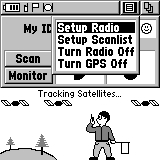
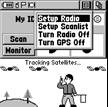
- Setup from Radio Page Menu
|
|
13
|
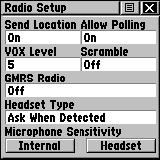
- Send location & Allow polling- must both be ON
- Many other radio options are here too
- VOX level
- GMRS on/off ( GMRS requires license)
- Headset type
- Microphone sensitivity
|
|
14
|
|
|
15
|
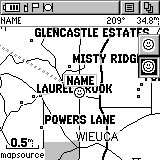
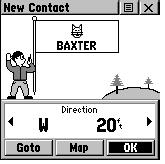
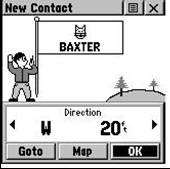
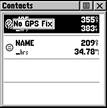
- When a new contact is received, “New contact page” will appear,
selecting “OK” will add new contact Icon to list on Map page
|
|
16
|
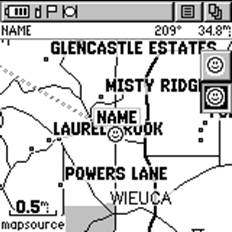
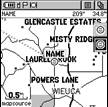
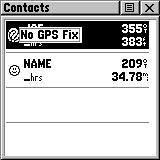
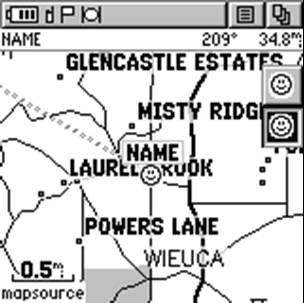
- To review a Contact, Highlight the desired contact on the contact bar
- Map page will center on contact
- Display-name, direction, distance
- Or
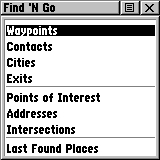
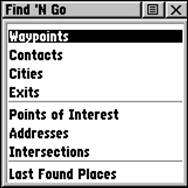
- From Find ‘N Go Menu-
- select “Contacts”, select contact
|
|
17
|
- Polling a Contact is requesting that Contact’s Rino send you it’s
location (with out Contact intervention).
- From the contacts detail page (accessed by Find ‘N Go or map page Icon)
select the “option menu”
- Select “Poll Location”
|
|
18
|
- Many ways to get there
- Nested menus
- Joystick navigation
- Page/Quit button
- Shortcut menu, zoom button
|
|
19
|
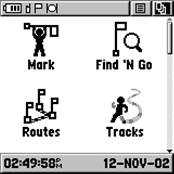
- Set Waypoint
- GoTo
- Clear Trip & Tracks
- Navigate
- Determine distance &
direction of “Contacts”
|
|
20
|
|
|
21
|
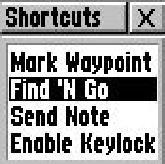
- From any menu pressing the joystick/enter and holding for 1-2 seconds
brings up the Shortcut menu
- This menu allows you to Mark (current location as a) Waypoint.
- Find & Go ( Goto) menu
- Enable Disable keylock (keyboard can be locked/unlocked
|
|
22
|
- Set Waypoint & Find ‘N Go can be set from Main Menu as well
|
|
23
|
|
|
24
|
|
|
25
|
|
|
26
|
|
|
27
|
|
|
28
|
|
|
29
|
|
|
30
|
|
|
31
|
|
|
32
|
|
|
33
|
|
|
34
|
|
|
35
|
|
|
36
|
|
|
37
|
- Many ways to get there
- Joystick
- Select Rotation
- Icon in status bar
- drops a list of selectable pages
|
|
38
|
|
|
39
|
|
|
40
|
- GPS & Radio functions follow nested menus
- Menus are accessible by:
- Sub-menu/joystick
- Page/Quit button
- Enter hold (shortcut)
- Radio operations require proper setup to allow location ID
- Garmins Controls and displays are redundant with many paths to the same
information
|

 Notes
Notes